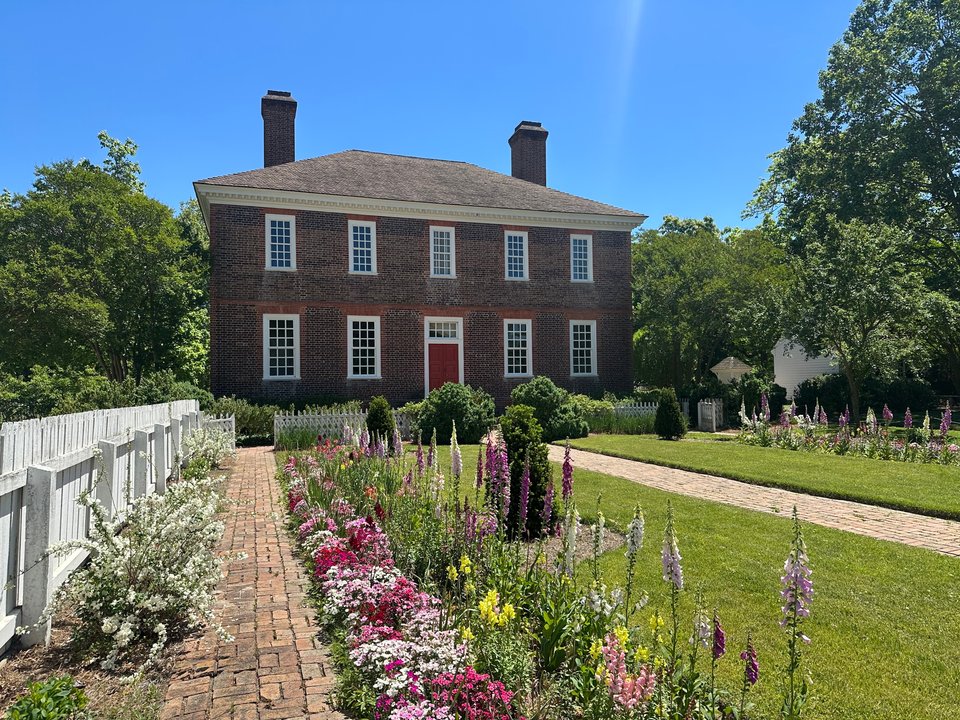
 Scene 3
/s3
A scene
Opens at the start of that scene, ready to play.
Try it: The Dining Room (opens in new tab)Send anyone straight to the place, story, or voice you want to share.
The basics
Every Tapestry has a Share button in the controls along the bottom. Its link opens the Tapestry at the exact spot you're viewing.
In any Tapestry, look for the small round buttons at the bottom left. Share is the box with an arrow pointing up. On a phone, tap the menu button at the bottom right, then Share.
The Share window names where the link will open, such as a scene or the voice that's playing.
Select Copy, then paste the link into an email, text, social post, or class page.
Tip: When a voice or photo is open, a Share button also appears in its top corner. Its link opens that same voice or photo.
Go deeper
As you move through a Tapestry, its web address changes to match. Share from a scene and the link opens that scene. Share while a voice is playing and it opens on that person's story.
What a link can open Select a card to see its link above
Scene 3
/s3
Opens at the start of that scene, ready to play.
Try it: The Dining Room (opens in new tab)
/s3/v2
Opens one person's story within a scene.
Try it: Caitlin Simpson (opens in new tab)
/s8/mm1
Opens that item within its scene.
Try it: The Frenchman's Map (opens in new tab)
/s1/int
Opens a scene's 3D space for visitors to explore freely.
Try it: The Main Passage (opens in new tab)Before they select Start, the start screen shows “Opening:” followed by the name of the scene, voice, or item.
Paste a link into a message or social post and the preview shows the Tapestry's title and cover image. The link still opens the exact moment you chose.
Languages
Some Tapestries offer a second language for narration and text. Choose it on the start screen before you select Start.
Any link you share after that keeps the language. It's useful for language classes and for families who speak another language at home.
Your website
Place a Tapestry on a web page, blog post, or online exhibit so visitors can explore it without leaving your site.
Read the full Content Use & Embedding Policy, or email info@cyark.org with questions. If your site doesn't accept embed code, share a link instead.
For teachers
Links to a single moment make lessons easy to plan. Send each group to a different voice in the same scene, then bring the class together to compare what they heard.
Paste a link into an assignment or announcement. Students land exactly where you want them, without hunting for the right scene.
Open the Tapestry on the classroom screen and select the Fullscreen button at the bottom right. Pause the narration whenever you want to discuss.
Walk through the Tapestry once and copy a link at each moment you want to use. Each link becomes a ready-made warm-up, discussion prompt, or exit ticket.
Looking for lesson ideas and classroom-ready experiences? Visit Tapestry for Teachers.
Companion pages
Every Tapestry has two text pages that you can share as well. They load quickly and work on any device.
/content/george-wythe-house/transcripts
(opens in new tab)
About page
A one-page overview of the scenes, voices, partners, and credits. Handy for planning a lesson before you open the Tapestry.
/content/george-wythe-house/about
(opens in new tab)
To find these for any Tapestry, add /transcripts or /about to the end of its main link.
Troubleshooting
Most problems come down to the browser, device, or network. Try these three things.
Use a current version of Chrome, Edge, Safari, or Firefox. Tapestry renders 3D in the browser, so older browsers and devices may struggle.
If a link works at home but not at school, the school network may be blocking it. Ask your IT team to allow tapestry.cyark.org.
The device check tests your browser, graphics, and connection, then creates a report you can send to your IT team or to us.
Check this device (opens in new tab)Still stuck? Email info@cyark.org with the link you're trying to open.